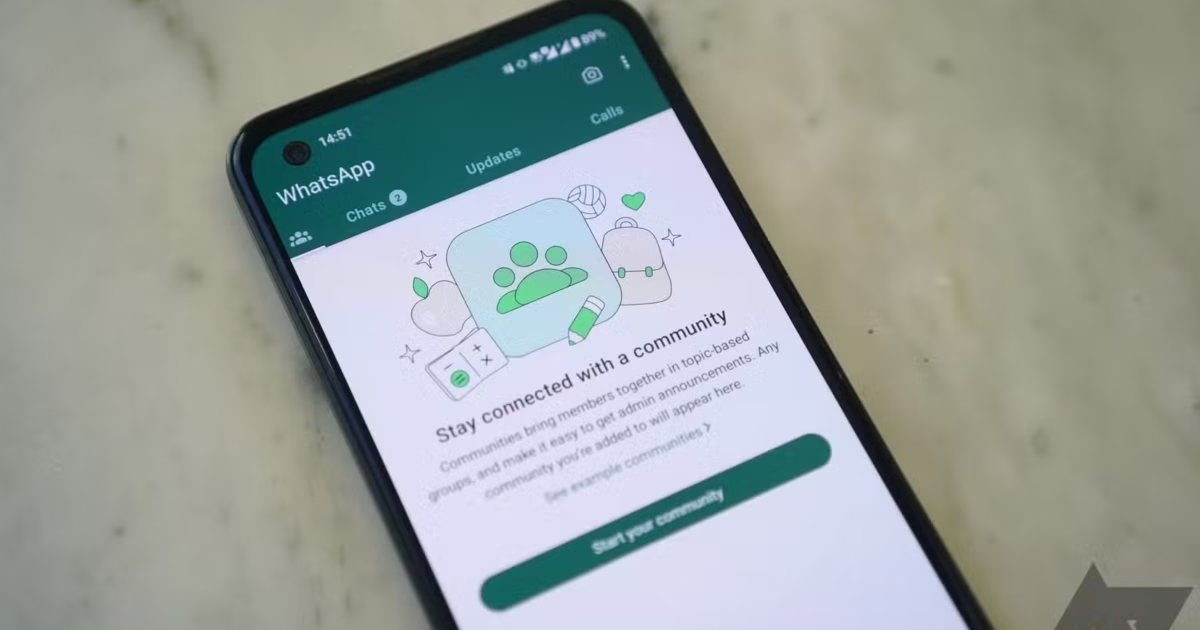
The WS web version provides a convenient way to access messaging features directly from a computer browser. Instead of relying only on a mobile device, users can manage conversations, send messages, share files, and stay connected through a larger screen. Learning how to use the platform is simple, even for people who are new to web-based messaging services.
What Is the WS Web Version?
The WS web version is designed to bring the messaging experience from a mobile device to a desktop or laptop. It allows users to communicate through a browser while their phone remains connected to the service. The larger interface can make it easier to read conversations, type longer messages, and manage multiple chats.
Requirements Before Getting Started
Before using the web version, make sure you have a stable internet connection and an updated web browser. Your smartphone should also have the related messaging application installed and be connected to the internet during the initial setup. A computer with a comfortable keyboard and a reasonably sized screen can make the experience more convenient.
Open the WS Web Page
Start by opening your preferred browser on your computer and visiting the official WS web page. Once the page loads, you may see a QR code or another login option. Keep this browser tab open while you complete the connection process from your smartphone.
Connect Your Smartphone
Open the messaging application on your phone and look for the settings or connected-devices section. Select the option for linking a new device. Your phone may ask you to scan the QR code displayed on the computer screen. Point your phone’s camera toward the code and wait for the connection to complete. Also read: Employee Tracking Apps: Privacy Pitfall or Productivity Powerhouse?
After successful verification, your conversations should begin appearing in the browser. Depending on your internet speed and the amount of information being synchronized, the process may take a short amount of time.
Send and Receive Messages
Once connected, you can open an individual conversation or group chat from the browser. Click inside the message box, type your message, and press Enter to send it. Incoming messages will generally appear on the screen without requiring you to refresh the page.
Using a physical keyboard can make writing longer messages much faster. This is particularly useful for people who use messaging services for work, customer communication, or regular conversations.
Share Files and Media
The web interface can also make sharing documents and media more convenient. Depending on the features supported by your version of WS, you may be able to send photographs, videos, documents, or other supported files. Look for the attachment icon within a conversation, select the required file from your computer, and follow the on-screen instructions. Also read: Top Tips For Maintaining Your iPhone After Repairs
Always check the recipient and file before sending sensitive or important information. Using a trusted computer and a secure internet connection can also help protect your account.
Manage Chats More Easily
A desktop interface provides additional space for organizing conversations. You can search for specific chats, open group conversations, and review previous messages. Some versions may also provide options for notifications, chat settings, and other account-related controls.
These features can help users maintain a smoother workflow when they need to communicate regularly from a computer.
Keep Your Account Secure
Security should remain a priority whenever you use a web-based messaging service. Avoid signing in on public or shared computers whenever possible. If you use one temporarily, make sure you disconnect the device after finishing your session. Also read: 7 Positive Impacts of Customer Experience Management on Your Business
It is also important to keep your smartphone and browser updated. If you notice an unfamiliar connected device, review your account’s linked-device settings and remove access when necessary.
Troubleshooting Common Problems
Sometimes the web version may fail to connect because of an unstable internet connection, an outdated application, or a problem with the browser. Refreshing the page, restarting the application, checking the internet connection, or updating the software may resolve basic issues.
If the QR code does not scan, make sure the camera is focused properly and that the code is fully visible on the computer screen. If problems continue, check the platform’s official support resources for current troubleshooting instructions.
Conclusion
Learning How to use the WS web version can make everyday communication more convenient by bringing messaging to a larger computer screen. The basic process involves opening the web service, connecting your smartphone, and using the available chat features. With sensible security practices and an updated browser, users can enjoy a practical desktop messaging experience. The WS web version can be especially useful for people who frequently type messages, exchange files, or manage conversations while working on a computer.